
Step 1: Create a Telegram-enabled agent key
1
Open Agent Keys
Go to app.shuriken.trade, click your profile icon in the top-right corner, and select Agent Keys.
2
Create a new key
Click + New Agent to open the key creation modal.
3
Choose your permissions
Select the permissions you want. For full NLP trading, you’ll typically want: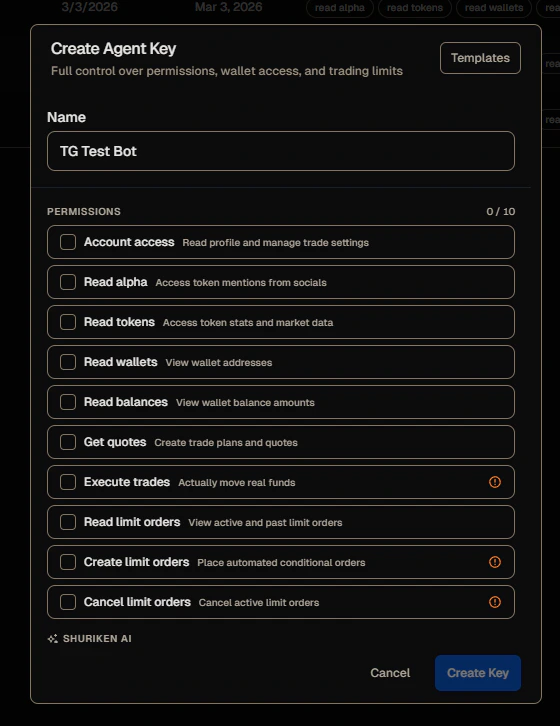
- Account access - read your profile and trade settings
- Read alpha - access token mentions from your connected sources
- Read tokens - look up prices, stats, and market data
- Read wallets - view your wallet addresses
- Read balances - view your holdings and portfolio value
- Get quotes - check trade prices without executing
- Execute trades - actually place trades (optional - only enable if you want the bot to trade for you)
4
Enable Telegram
Scroll down to the Shuriken AI section at the bottom of the modal. Check the Telegram box.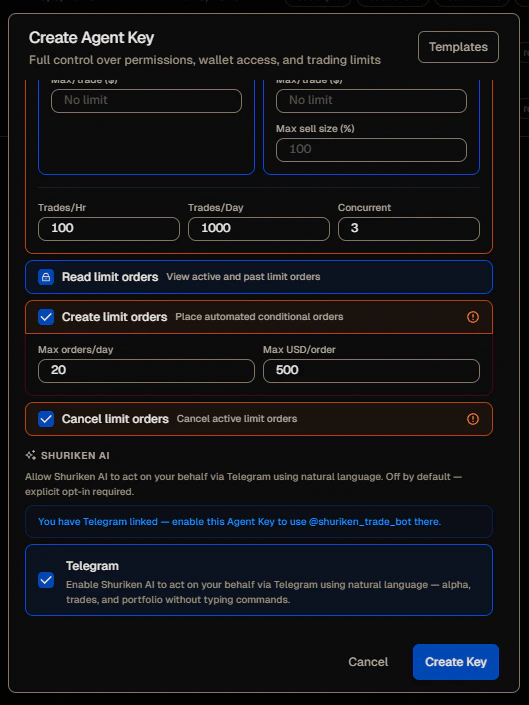
If you already have a Telegram account linked to Shuriken, you’ll see a confirmation that your account is connected. The key will be tied to that Telegram account automatically.
5
Create the key
Click Create Key. Your key is now active and Telegram is enabled.
Step 2: Start chatting
1
Open the bot
Open @shuriken_trade_bot on Telegram and start a conversation.
2
Type anything
Write what you want in plain English (or crypto slang). Some things to try:
- “whats trending”
- “what’s my balance”
- “how much BONK do I have”
- “ape 0.5 sol into WIF”
- “dump all my BONK”
- “what’s the price of SOL”
- “show my positions”
- “recent alpha”
What if the bot says you don’t have a key?
If you message the bot before creating a Telegram-enabled key, you’ll see this: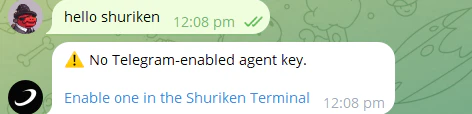
Understanding the responses
The bot uses a consistent format so responses are easy to scan at a glance:Confirming it’s set up
Once your key is created with Telegram enabled, you’ll see Telegram appear in the Platforms column on the Agent Keys page. Keys without Telegram enabled show a dash in that column.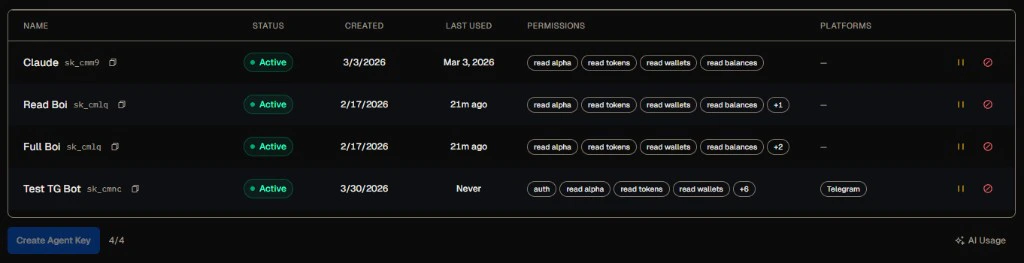
Managing your key
You can view, pause, or revoke your key at any time from app.shuriken.trade/agents.- Pause - temporarily disables the bot without deleting the key
- Revoke - permanently removes access (the bot stops working immediately)
Next steps
Usage & Billing
See how your daily budget works and which tier you’re on.
Permissions & Safety
Learn what each permission unlocks and how to set safe trading limits.