> ## Documentation Index
> Fetch the complete documentation index at: https://docs.shuriken.trade/llms.txt
> Use this file to discover all available pages before exploring further.
# Telegram Setup
> Enable natural language trading in Telegram in two steps: create a Telegram-enabled agent key, then start chatting.
To use Shuriken's NLP in Telegram, you need one thing: an agent key with the **Telegram** option enabled. Once that's in place, open [@shuriken\_trade\_bot](https://t.me/shuriken_trade_bot) and start typing - no commands, no configuration, no API keys to paste.
## Step 1: Create a Telegram-enabled agent key
Go to [app.shuriken.trade](https://app.shuriken.trade), click your **profile icon** in the top-right corner, and select **Agent Keys**.
Click **+ New Agent** to open the key creation modal.
Select the permissions you want. For full NLP trading, you'll typically want:
* **Account access** - read your profile and trade settings
* **Read alpha** - access token mentions from your connected sources
* **Read tokens** - look up prices, stats, and market data
* **Read wallets** - view your wallet addresses
* **Read balances** - view your holdings and portfolio value
* **Get quotes** - check trade prices without executing
* **Execute trades** - actually place trades (optional - only enable if you want the bot to trade for you)
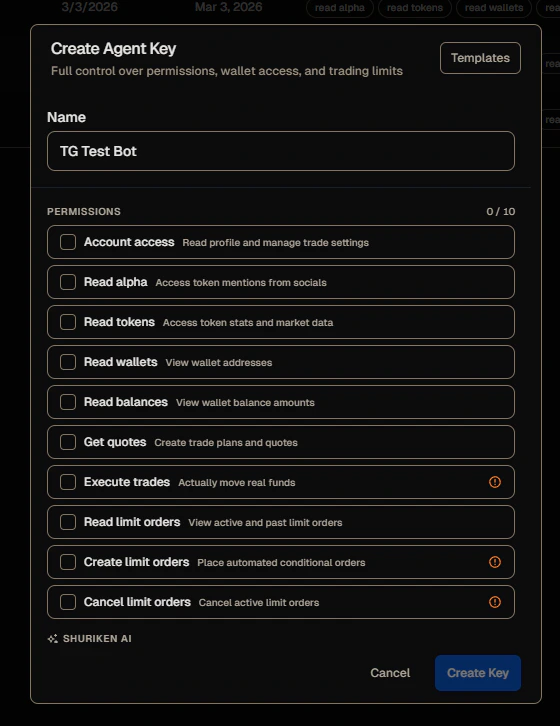 **Execute trades** moves real funds and trades happen immediately with no confirmation step. Only enable it if you're comfortable with that. Set conservative per-trade and daily dollar limits when you first turn it on.
Scroll down to the **Shuriken AI** section at the bottom of the modal. Check the **Telegram** box.
**Execute trades** moves real funds and trades happen immediately with no confirmation step. Only enable it if you're comfortable with that. Set conservative per-trade and daily dollar limits when you first turn it on.
Scroll down to the **Shuriken AI** section at the bottom of the modal. Check the **Telegram** box.
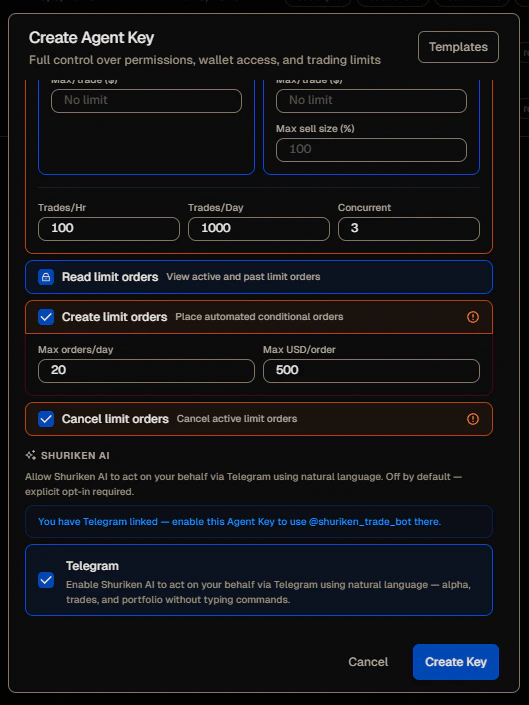 If you already have a Telegram account linked to Shuriken, you'll see a confirmation that your account is connected. The key will be tied to that Telegram account automatically.
Click **Create Key**. Your key is now active and Telegram is enabled.
## Step 2: Start chatting
Open [@shuriken\_trade\_bot](https://t.me/shuriken_trade_bot) on Telegram and start a conversation.
Write what you want in plain English (or crypto slang). Some things to try:
* "whats trending"
* "what's my balance"
* "how much BONK do I have"
* "ape 0.5 sol into WIF"
* "dump all my BONK"
* "what's the price of SOL"
* "show my positions"
* "recent alpha"
The bot links your Telegram account to your Shuriken account automatically - no login, no code to paste, no API keys.
## What if the bot says you don't have a key?
If you message the bot before creating a Telegram-enabled key, you'll see this:
If you already have a Telegram account linked to Shuriken, you'll see a confirmation that your account is connected. The key will be tied to that Telegram account automatically.
Click **Create Key**. Your key is now active and Telegram is enabled.
## Step 2: Start chatting
Open [@shuriken\_trade\_bot](https://t.me/shuriken_trade_bot) on Telegram and start a conversation.
Write what you want in plain English (or crypto slang). Some things to try:
* "whats trending"
* "what's my balance"
* "how much BONK do I have"
* "ape 0.5 sol into WIF"
* "dump all my BONK"
* "what's the price of SOL"
* "show my positions"
* "recent alpha"
The bot links your Telegram account to your Shuriken account automatically - no login, no code to paste, no API keys.
## What if the bot says you don't have a key?
If you message the bot before creating a Telegram-enabled key, you'll see this:
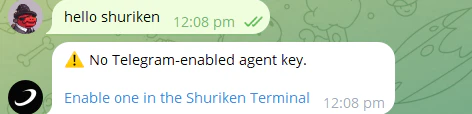 Tap **Enable one in the Shuriken Terminal** and it'll take you straight to Agent Keys to set one up.
## Understanding the responses
The bot uses a consistent format so responses are easy to scan at a glance:
```
📊 Token info
💼 Position / portfolio
⚡ Trade in progress
✅ Trade complete
❌ Error / rejected
ℹ️ Missing information
💡 Hint / suggestion
```
When something goes wrong, the bot tells you exactly what happened and what to do next:
```
You: buy $50000 of bonk
Shuriken: ❌ Trade rejected: exceeds your per-trade limit ($5,000 max).
💡 Try a smaller amount, or check your limits with "my usage".
```
If you forget to include an amount for a trade, the bot asks you to resend a complete command rather than guessing:
```
You: buy bonk
Shuriken: ℹ️ Missing trade amount.
💡 Send a complete command, e.g. "buy $500 of BONK"
```
## Confirming it's set up
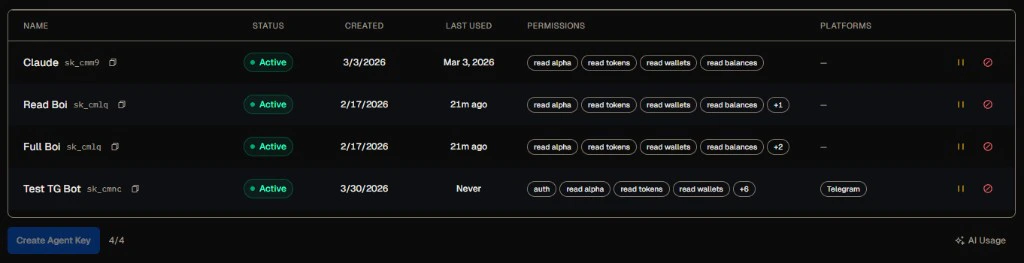
Once your key is created with Telegram enabled, you'll see **Telegram** appear in the Platforms column on the Agent Keys page. Keys without Telegram enabled show a dash in that column.
Tap **Enable one in the Shuriken Terminal** and it'll take you straight to Agent Keys to set one up.
## Understanding the responses
The bot uses a consistent format so responses are easy to scan at a glance:
```
📊 Token info
💼 Position / portfolio
⚡ Trade in progress
✅ Trade complete
❌ Error / rejected
ℹ️ Missing information
💡 Hint / suggestion
```
When something goes wrong, the bot tells you exactly what happened and what to do next:
```
You: buy $50000 of bonk
Shuriken: ❌ Trade rejected: exceeds your per-trade limit ($5,000 max).
💡 Try a smaller amount, or check your limits with "my usage".
```
If you forget to include an amount for a trade, the bot asks you to resend a complete command rather than guessing:
```
You: buy bonk
Shuriken: ℹ️ Missing trade amount.
💡 Send a complete command, e.g. "buy $500 of BONK"
```
## Confirming it's set up
Once your key is created with Telegram enabled, you'll see **Telegram** appear in the Platforms column on the Agent Keys page. Keys without Telegram enabled show a dash in that column.
 ## Managing your key
You can view, pause, or revoke your key at any time from [app.shuriken.trade/agents](https://app.shuriken.trade/agents).
* **Pause** - temporarily disables the bot without deleting the key
* **Revoke** - permanently removes access (the bot stops working immediately)
You can have multiple keys. For example, a read-only key for checking prices and a separate trading key with strict limits. The bot uses whichever key has Telegram enabled.
## Next steps
See how your daily budget works and which tier you're on.
Learn what each permission unlocks and how to set safe trading limits.
## Managing your key
You can view, pause, or revoke your key at any time from [app.shuriken.trade/agents](https://app.shuriken.trade/agents).
* **Pause** - temporarily disables the bot without deleting the key
* **Revoke** - permanently removes access (the bot stops working immediately)
You can have multiple keys. For example, a read-only key for checking prices and a separate trading key with strict limits. The bot uses whichever key has Telegram enabled.
## Next steps
See how your daily budget works and which tier you're on.
Learn what each permission unlocks and how to set safe trading limits.