> ## Documentation Index
> Fetch the complete documentation index at: https://docs.shuriken.trade/llms.txt
> Use this file to discover all available pages before exploring further.
# Create an Agent Key
> Pick a preset, name your agent, and you're done in 30 seconds. No code, no server, no monthly fee.
An Agent Key connects your AI tool to your Shuriken account. It controls exactly what the AI is allowed to do - from reading token prices to executing trades - and every limit is enforced server-side before the agent ever starts. Pick a preset template and you're done in 30 seconds. Or build a custom key with the exact permissions you need.
Think of it like giving someone a key to your house, except you get to choose which rooms they can enter.
## Create a preset key
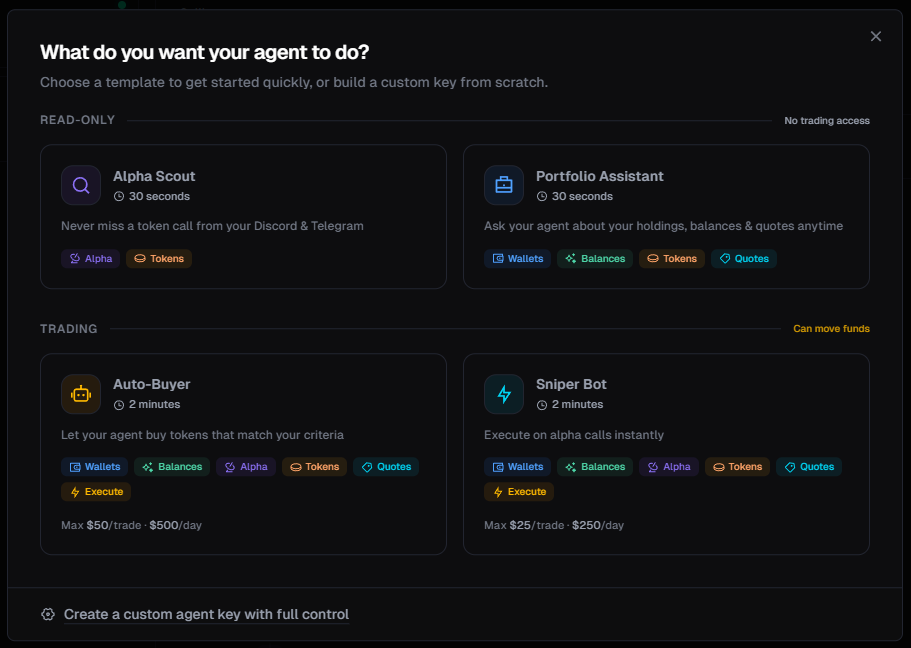
Templates are pre-configured keys designed for common use cases. Pick one, give it a name, and you're done in 30 seconds.
Click your **profile icon** in the top-right corner of the terminal, then select **Agent Keys**.
This opens the template selection modal.
Pick the template that fits your use case (see below for what each one does).
 ### Read-only templates
These keys **cannot trade or move funds**. They're safe to experiment with.
**Best for:** Monitoring your Discord and Telegram alpha groups through AI.
**Can do:**
* See token mentions from your connected groups
* Look up any token's price, stats, and market data
* Track which calls are performing best
**Cannot do:**
* See your wallet balances
* Execute any trades
**Best for:** Asking your AI about your holdings, balances, and getting trade quotes.
**Can do:**
* View your wallet addresses and balances
* Check token holdings and profit/loss
* Look up token prices and stats
* Get trade quotes (without executing)
**Cannot do:**
* Execute any trades
### Trading templates
These keys **can move real funds** from your wallet. They come with built-in safety limits.
Trading keys give the AI permission to buy and sell tokens using your wallet. Only create one if you understand the risks and trust your AI setup.
**Best for:** Letting the AI buy tokens that match your criteria automatically.
**Can do:** Everything (wallets, balances, alpha, tokens, quotes, and execution)
**Default limits:**
* Max \$50 per trade
* Max \$500 per day
**Best for:** Executing on alpha calls instantly as they come in.
**Can do:** Wallets, balances, tokens, quotes, and execution
**Default limits:**
* Max \$25 per trade
* Max \$250 per day
## Set up your template key
Click the template card that fits your use case.
Give it a descriptive name so you can identify it later (e.g., "My Alpha Scout" or "Cursor Trading Bot").
### Read-only templates
These keys **cannot trade or move funds**. They're safe to experiment with.
**Best for:** Monitoring your Discord and Telegram alpha groups through AI.
**Can do:**
* See token mentions from your connected groups
* Look up any token's price, stats, and market data
* Track which calls are performing best
**Cannot do:**
* See your wallet balances
* Execute any trades
**Best for:** Asking your AI about your holdings, balances, and getting trade quotes.
**Can do:**
* View your wallet addresses and balances
* Check token holdings and profit/loss
* Look up token prices and stats
* Get trade quotes (without executing)
**Cannot do:**
* Execute any trades
### Trading templates
These keys **can move real funds** from your wallet. They come with built-in safety limits.
Trading keys give the AI permission to buy and sell tokens using your wallet. Only create one if you understand the risks and trust your AI setup.
**Best for:** Letting the AI buy tokens that match your criteria automatically.
**Can do:** Everything (wallets, balances, alpha, tokens, quotes, and execution)
**Default limits:**
* Max \$50 per trade
* Max \$500 per day
**Best for:** Executing on alpha calls instantly as they come in.
**Can do:** Wallets, balances, tokens, quotes, and execution
**Default limits:**
* Max \$25 per trade
* Max \$250 per day
## Set up your template key
Click the template card that fits your use case.
Give it a descriptive name so you can identify it later (e.g., "My Alpha Scout" or "Cursor Trading Bot").
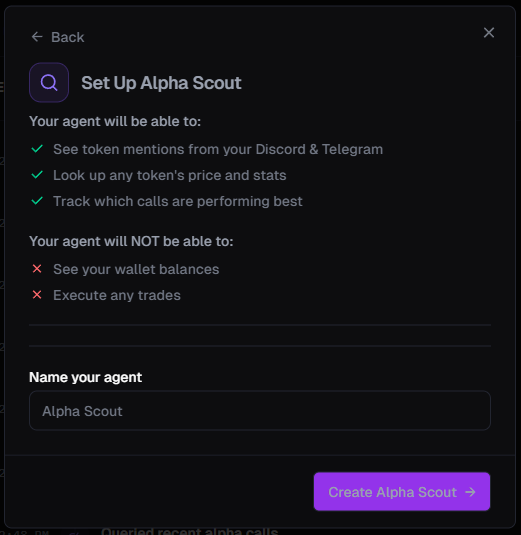 Click **Create** and your key will be generated instantly.
## Create a custom key
If none of the templates fit, you can build your own key with exactly the permissions you need.
Click **Create a custom agent key with full control** at the bottom of the template modal.
Click **Create** and your key will be generated instantly.
## Create a custom key
If none of the templates fit, you can build your own key with exactly the permissions you need.
Click **Create a custom agent key with full control** at the bottom of the template modal.
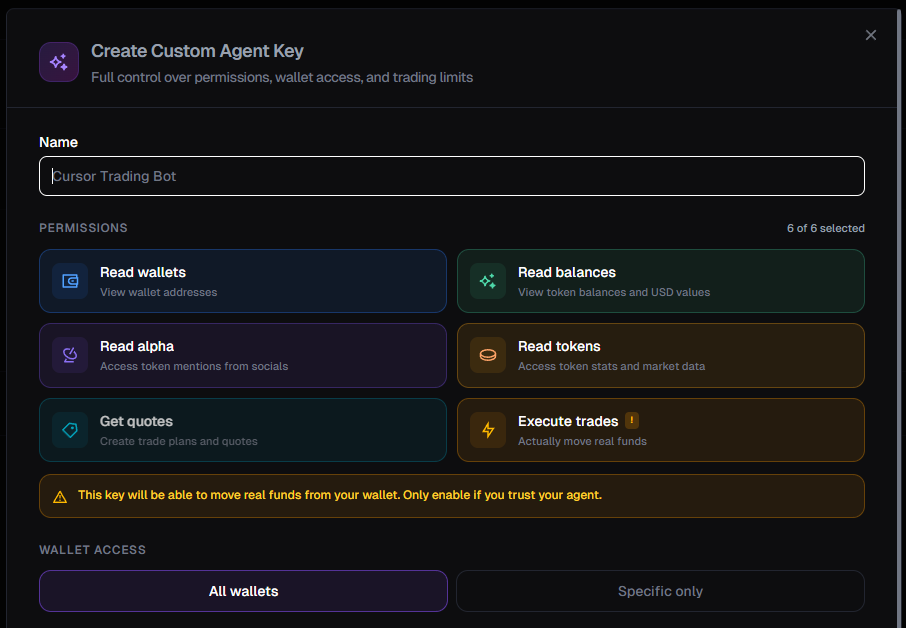 Enter a name for your agent (e.g., "Research Only" or "Cursor Trading Bot").
Toggle the permissions your agent needs. See the [Permissions guide](/agent-kit/permissions) for a detailed explanation of each one.
| Permission | What it does |
| ------------------ | ------------------------------------------------ |
| **Read Wallets** | View your wallet addresses |
| **Read Balances** | View token balances and USD values |
| **Read Alpha** | Access token mentions from your Discord/Telegram |
| **Read Tokens** | Look up token prices, stats, and market data |
| **Get Quotes** | Create trade plans and get price quotes |
| **Execute Trades** | Actually move real funds (buy/sell tokens) |
You can always start with fewer permissions and create a new key later with more access. When in doubt, leave **Execute Trades** off.
Choose whether the key can access **all your wallets** or only **specific ones**.
When you turn on Execute Trades, additional safety controls appear. See [Permissions & Safety](/agent-kit/permissions) for full details on:
* Buy/sell limits per day and per trade
* Max sell size (percentage of a position)
* Execution rate limits (trades per hour, per day)
* Max concurrent trades
* Slippage cap
* Custom gas fees and MEV protection
Scroll down to the **Shuriken AI** section at the bottom of the modal. Check the **Telegram** box to allow this key to be used with [@shuriken\_trade\_bot](https://t.me/shuriken_trade_bot) for natural language trading.
Enabling Telegram lets you message the Shuriken bot in plain English - "whats trending", "buy 0.1 SOL of BONK", "show my balance" - and it executes within the limits set on this key. See the [Natural Language Trading guide](/agent-kit/nlp-telegram) for setup details.
Click **Create Key** to generate your Agent Key.
## Copy your key
**Copy your key immediately.** You will not be able to see it again after closing this screen. If you lose it, you'll need to create a new one.
Enter a name for your agent (e.g., "Research Only" or "Cursor Trading Bot").
Toggle the permissions your agent needs. See the [Permissions guide](/agent-kit/permissions) for a detailed explanation of each one.
| Permission | What it does |
| ------------------ | ------------------------------------------------ |
| **Read Wallets** | View your wallet addresses |
| **Read Balances** | View token balances and USD values |
| **Read Alpha** | Access token mentions from your Discord/Telegram |
| **Read Tokens** | Look up token prices, stats, and market data |
| **Get Quotes** | Create trade plans and get price quotes |
| **Execute Trades** | Actually move real funds (buy/sell tokens) |
You can always start with fewer permissions and create a new key later with more access. When in doubt, leave **Execute Trades** off.
Choose whether the key can access **all your wallets** or only **specific ones**.
When you turn on Execute Trades, additional safety controls appear. See [Permissions & Safety](/agent-kit/permissions) for full details on:
* Buy/sell limits per day and per trade
* Max sell size (percentage of a position)
* Execution rate limits (trades per hour, per day)
* Max concurrent trades
* Slippage cap
* Custom gas fees and MEV protection
Scroll down to the **Shuriken AI** section at the bottom of the modal. Check the **Telegram** box to allow this key to be used with [@shuriken\_trade\_bot](https://t.me/shuriken_trade_bot) for natural language trading.
Enabling Telegram lets you message the Shuriken bot in plain English - "whats trending", "buy 0.1 SOL of BONK", "show my balance" - and it executes within the limits set on this key. See the [Natural Language Trading guide](/agent-kit/nlp-telegram) for setup details.
Click **Create Key** to generate your Agent Key.
## Copy your key
**Copy your key immediately.** You will not be able to see it again after closing this screen. If you lose it, you'll need to create a new one.
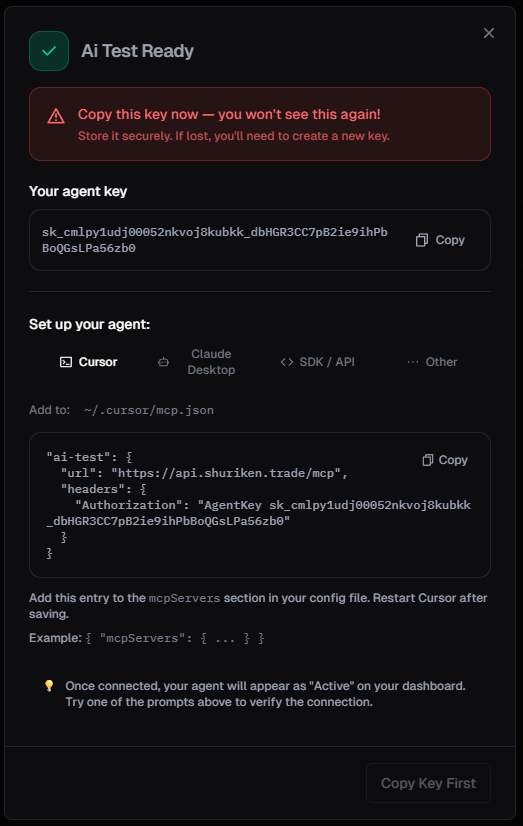 After creating your key, you'll see:
* **Your Agent Key** - a string starting with `sk_` that you'll paste into your AI tool
* **Setup instructions** - ready-to-copy config snippets for Cursor, Claude Desktop, and other tools
Copy the key and store it somewhere safe. Then head to the setup guide for your AI tool:
## Managing your keys
You can view, pause, or revoke your Agent Keys at any time from the [Agent Keys dashboard](https://app.shuriken.trade/agents).
* **Pause** - temporarily disable a key without deleting it
* **Revoke** - permanently delete a key (the AI will immediately lose access)
It's good practice to create separate keys for different purposes. For example, one read-only key for research and a separate trading key with strict limits.
## Monitor your agent's activity
Every action your agent takes is logged in real-time on the Agent Keys dashboard. Click any key in the sidebar to see its activity feed.
After creating your key, you'll see:
* **Your Agent Key** - a string starting with `sk_` that you'll paste into your AI tool
* **Setup instructions** - ready-to-copy config snippets for Cursor, Claude Desktop, and other tools
Copy the key and store it somewhere safe. Then head to the setup guide for your AI tool:
## Managing your keys
You can view, pause, or revoke your Agent Keys at any time from the [Agent Keys dashboard](https://app.shuriken.trade/agents).
* **Pause** - temporarily disable a key without deleting it
* **Revoke** - permanently delete a key (the AI will immediately lose access)
It's good practice to create separate keys for different purposes. For example, one read-only key for research and a separate trading key with strict limits.
## Monitor your agent's activity
Every action your agent takes is logged in real-time on the Agent Keys dashboard. Click any key in the sidebar to see its activity feed.
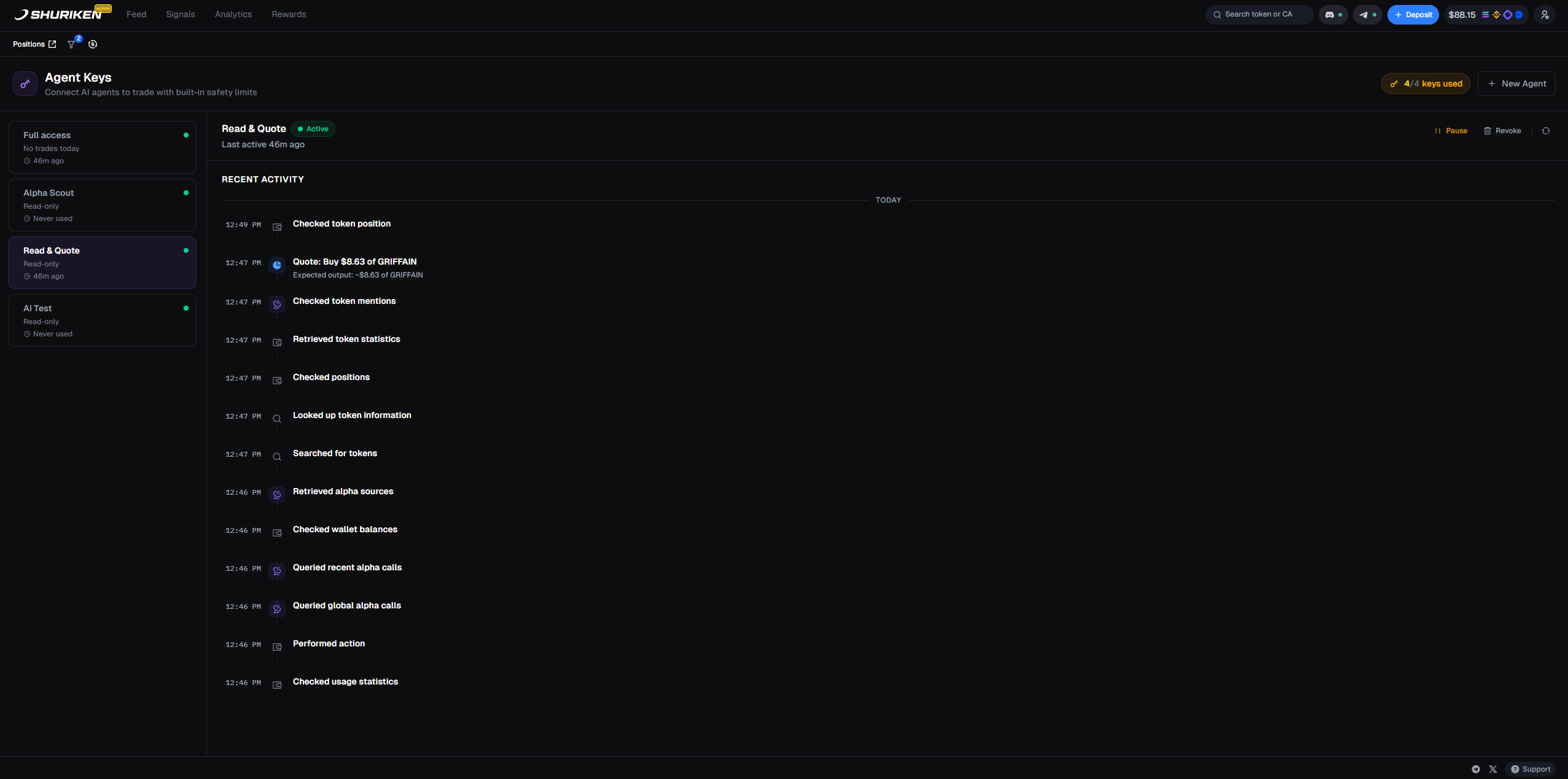 The activity log shows:
* **Every tool call** - token lookups, balance checks, alpha queries, and more
* **Trade quotes** - including the token, amount, and estimated value
* **Timestamps** - so you can see exactly when each action happened
* **Status** - whether the key is active, paused, or idle
This gives you full visibility into what your AI is doing with your account. If anything looks off, you can **pause or revoke** the key instantly from the same page.
The activity dashboard is available at [app.shuriken.trade/agents](https://app.shuriken.trade/agents). Bookmark it for quick access.
The activity log shows:
* **Every tool call** - token lookups, balance checks, alpha queries, and more
* **Trade quotes** - including the token, amount, and estimated value
* **Timestamps** - so you can see exactly when each action happened
* **Status** - whether the key is active, paused, or idle
This gives you full visibility into what your AI is doing with your account. If anything looks off, you can **pause or revoke** the key instantly from the same page.
The activity dashboard is available at [app.shuriken.trade/agents](https://app.shuriken.trade/agents). Bookmark it for quick access.